...Not! I wished...
Available at: Coloreware
Tuesday, December 26, 2006

Monday, December 18, 2006
Hate to type on mobile phone! - Use QR Code!
I think it was back in 2004, when I visited my family in Japan, I found some weird looking barcode-like thingies everywhere on paper and magazines. They didn't look like the traditional barcodes with a bunch of vertical lines. I was stearing one as I was trying to figure out how to decode this cyptic message from outer space or something, then finally asked my brother. He was actually really surprised that I had no idea what they were.
Well, anyway what I saw was called QT code, a matrix code (2-D code) that contains info, mainly URLs of mobile websites. Use your camera phone and scan the barcode so you don't have to type them in with non-qwerty devices!
Now it is almost the end of 2006, here in the US, I finally have a chance to use the barcode with Nokia N93, which comes with a barcode reader software (and 3.2 megapixel camera!)
Then I wonder how I could adopt the QR code for own wap sites and googled it. Sweet enough I didn't have any difficulty to find some QR-code generators. The one I liked is qrcode.kaywa.com. The image below is the example I created on the website. This stored a URL for google's mobile site, google.mobi (I believe this is their new domain and slightly different from mobile.google.com. This site has UA detection.)

Related Sites and Articles:
- Wikipedia - QR Code
- Nokia N-Series
- Tommi's S60 Applications Blog - 2D Barcode Manifesto
- What Japan Thinks - QT Code Extremely Popular (Sept 2005)
Wednesday, November 29, 2006
Nokia Music Mixer
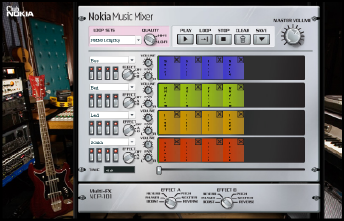
I got a new N93 before Thanksgiving and have been having fun with it since the holiday weekend.
Now I found that Nokia launched another cool toy I can play with my new N93 - Nokia Music Mixer. This is an web application (Flash) that allows you to remix tracks and download them as ring tones. This seems to be a part of Nokia 5300 XPressMusic phone campaign, and you can join the mix competition to win the new phone!
Monday, November 13, 2006
10 Things Brian Learned at Mobile 2.0
"10 Things I Learned at Mobile 2.0" (by Brian Fling of Blue Flavor) has a great summary about interesting facts on Mobile 2.0 Conference that I still regret I didn't go. I am glad that there're some good web/blog I can read about the conference.
- Mobile 2.0 = The Web
- The mobile web browser is the next killer app (Mozilla Minimo)
- Mobile Web Applications are the future
- AJAX is the next frontier
- Javascript kills battery life
- The Mobile User Experience Sucks/Rules/Is Hot!
- Mobile Widgets are the next big thing
- The Carrier is the new "C" word
- People abuse the Podium
- We are creators not consumers
I cannot agree more about mobile user experience. I am sure that everybody who have browsed mobile web sites have encountered some difficulty navigating in some point. User-experience really is a key for handheld devices!
Thursday, November 09, 2006
Gmail Mobile App
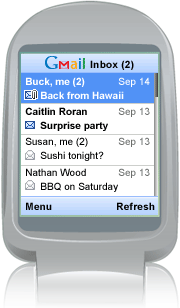 It's faster than Gmail mobile web and you can view attachments too!
View demo on web (on PC)
I feel that we (people here, in the US) are so behind of mobile technology, compared to Europe and Asia. Though we all have heard of the new term, "Mobile 2.0", I believe most of us don't get much benefit of because we are so stuck with phone provider's own business models (providing customers locked phones and charging fees for whatever services). I am hoping soon we are able to get some descent Wifi-enable mobile phones cheap and enjoy so-called Mobie 2.0, without worrying bills.
(BTW I just missed Mobile 2.0 Conferene here in SF... Stupid me.)
BTW, I was excite about that YouTube on Mobile, but I found out that they are in the process with Verizon (source: Mashable!). Verizon wil charge $15 per month for this service. Like I just mention, we are stuck with the providers plans.
Friday, November 03, 2006
YouTube to Go Mobile

According to MobileCrunch, YouTube will go mobile!
Currently, youTube allows you to upload from your mobile, but can't watch video on your mobile. In near future, you can watch videos in your hand!
Friday, October 27, 2006
Mobile Web Best Practices 1.0
456 Berea St (great site!) has a summery of W3C's Mobile Web Best Practices 1.0. It's stupid to summarize the great summary here, but I am doing for my own "notekeeping" sake.
- Use link target ID
- No Pop-ups
- One way scrolling
- Use of color
- No frames
- No table layout
- Use text alternative for images/image maps/scripts etc.
- No embedded object
- Valid markup
- Label all controls
I've learned them from trial-and-error approach when I was writing separated CSS files for several Nokia devices, but I am glad to find that W3C is working on this documentation.
Someday, I 'd like to work on my own documentation but I suck at writing. I feel like I am such an idiot after spending 1/3 of my life in the US and still struggling with English language. sigh.
Here's some usuful mobile web related links I've bookmarked/del.icio.us'd:
Tuesday, October 24, 2006
Links: Visio IA Stencils
Visio IA / Wireframe Stencils
- Visio Stencils for Information Architects by Nick Finck
- Templates & Stencils for Visio & Omnigraffle by Garrett Dimon
- A visual vocabulary for describing information architecture and interaction design by Jesse James Garrett
- The Information Architecture Institute's Tools
Tuesday, October 17, 2006
Using Google Maps API - Part.4: Info Window
Let's add more functions on the SFO map example.
Opening a Info Window
To create a basic baloon-like floating "info window", call the openInfoWindow(htmlElement) method, passing it a location and a DOM element as an argument to create a text node.
map.openInfoWindow(new GLatLng(37.622934, -122.392159),
                   document.createTextNode("SFO"));
or, use similar method openInfoWindowHtml(htmlString) which takes an HTML string as its argument rather than a DOM element.
map.openInfoWindowHtml(
 new GLatLng(37.622934, -122.392159), "SFO");
Opening a Info Window on Click
Simply calling these methods above just display the info windows upon loading the map. If you want the info window opened by clicking a marker, you need to use event listeners. The static method, GEvent.addListener takes a marker as the 1st argument, the event as the 2nd argument, and a function as the 3rd argument. The events provided by GMap2 Class include; click, infowindowopen and infowindowclose. To open a info window on click, write:
GEvent.addListener(marker, "click", function() {
          marker.openInfoWindowHtml("SFO<br/>CA 94128");
    });
Finally, to give the event to the custom icon previously made, create a new function to combine both displaying the icon and call the click event. The function createMarker takes four arguments, latitude, longitude, icon image URL, and description (html).
In addition to the GIcon properties previously set, define infoWindowAnchor and infoShadowAnchor as well.
var desc_sfo ="SFO - San Francisco Intl Airport<br/>CA 94128";
var marker_sfo = createMarker(37.622934, -122.392159, "icons/sfo.png", desc_sfo);
map.addOverlay(marker_sfo);

function createMarker(lat, lng, ico, html) {
 var point = new GLatLng(lat, lng);

 if (ico!=null) {
  var icon = new GIcon();
  icon.image = ico;
  icon.shadow = "http://www.google.com/mapfiles/shadow50.png";
  icon.iconSize = new GSize(26, 44);
  icon.shadowSize = new GSize(50, 44);
  icon.iconAnchor = new GPoint(13, 44);
  icon.infoWindowAnchor = new GPoint(9, 2);
  icon.infoShadowAnchor = new GPoint(18, 25);
 }
 var marker = new GMarker(point, icon);
 GEvent.addListener(marker, 'click', function() {
  marker.openInfoWindowHtml(html);
  });
  return marker;
}

See also: Google Maps API Version 2 Reference
Monday, October 16, 2006
Using Google Maps API - Part.3: Create a Custom Icon
Let's continue on the quick guide of using Google Map API.
Using Custom Icons
The hardest part is creating graphics for your marker image and its shadow with Photoshop or something. The icons should be cretaed in 24-bit png format. For this example, I just tweaked the default icon (the color changed to blue, made it bigger, and typed "SFO" in it!) and used default shadow.

To replace the generic icon to your custom icon, add this code in the last script, before the line that begins with var marker = ...
var icon = new GIcon();
icon.image = "icons/sfo.png";
icon.shadow = "http://www.google.com/mapfiles/shadow50.png";
icon.iconSize = new GSize(26, 44);
icon.shadowSize = new GSize(50, 44);
icon.iconAnchor = new GPoint(13, 44);
First, create a new icon instance (line 1).
Next two lines indicate icon/shadow image source path or URL. (I use default shadow image on Google server).
Next two specifies the image dimention in pixels.
 Anchor point of the icon is the "pointy" tip where also its shadow image originates.
In this case, the anchor point is 13 pixels over and 44 pixels down from the top-left corner of the SFO icon,
and this is defined by iconAnchor (line 6).
Anchor point of the icon is the "pointy" tip where also its shadow image originates.
In this case, the anchor point is 13 pixels over and 44 pixels down from the top-left corner of the SFO icon,
and this is defined by iconAnchor (line 6).
Location of the marker is defined by GMarker, just as you see in the last example, except, this time you need to add the 2nd paramter to include the custom icon. Finally, call addOverlay() method to dispaly thr marker icon.
var marker = new GMarker(new GLatLng(37.622934, -122.392159), icon);
map.addOverlay(marker);
Next: Opening an Info Window
Subscribe to:
Posts (Atom)